
Things That Quietly Slow Down Your Home Wi-Fi - And What to Do About Them

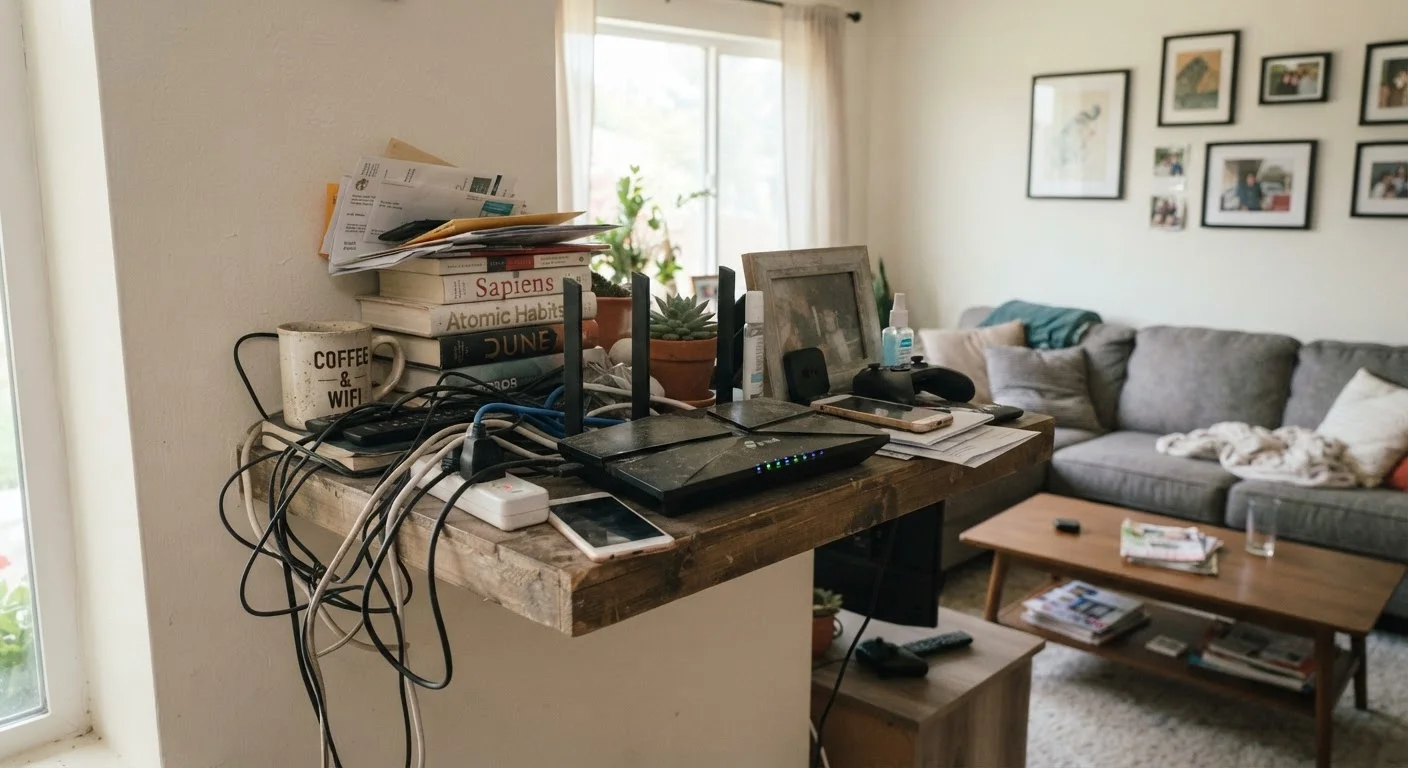
Photo: TheSearchHound.com | One Stop Answer To All Your Questions editorial
Key Takeaways
- Router placement has a major impact on Wi-Fi coverage and signal strength throughout your home.
- Common household objects - including microwaves and thick walls - can interfere with wireless signals.
- Too many devices on one network or Wi-Fi band can reduce speeds for everyone connected.
- Outdated router firmware and crowded neighboring networks are easy-to-overlook performance killers.
- Most Wi-Fi slowdowns are fixable without upgrading your internet plan or buying new equipment.
Why Your Wi-Fi Slows Down Without an Obvious Cause
Slow Wi-Fi is one of the most common household frustrations - and one of the most misunderstood. Most people assume the problem is their internet plan and call their provider, when the real issue is almost always something inside the home. The good news: the majority of these slowdowns are fixable without upgrading your service or replacing your router.
The factors that drag down home Wi-Fi tend to be invisible and gradual. A router that worked fine in your old apartment may struggle in a larger home. A smart thermostat installed last year is now one of thirty devices on the same network. A neighboring building filled with apartments has added dozens of competing Wi-Fi signals. None of these changes announce themselves - they just quietly chip away at performance.
Before assuming you need a faster plan, it's worth auditing your home network setup to rule out configuration issues first. The mistakes below cover the most common culprits and how to address each one.
Don't Assume Your Plan Is the Problem
The Most Common Wi-Fi Mistakes - And How to Fix Them
These errors show up repeatedly in home networks across all types of households. Many take just a few minutes to correct once you know what to look for.
Placing the router in a cabinet, corner, or far end of the home.
Ignoring physical obstructions like concrete walls, metal appliances, and floors.
Running all devices on the 2.4 GHz band instead of spreading load across both available bands.
Never updating the router's firmware.
Overlooking channel congestion from neighboring Wi-Fi networks.
Leaving dozens of idle or forgotten devices connected to the network.
Rebooting Alone Won't Fix Structural Problems
If you've worked through all of the above and still have persistent dead zones, it may be time to evaluate whether a single router is the right solution for your home. Our comparison of whole-home Wi-Fi systems versus traditional routers can help you think through whether a mesh setup makes sense for your space. And if you want to separate fact from fiction about what actually helps Wi-Fi performance, common Wi-Fi myths worth unlearning is a useful next read.
2.4 GHz
Band most home devices default to
The 2.4 GHz band supports longer range but is significantly more congested than 5 GHz in most residential environments, according to networking industry analysis.
~30 ft
Typical 5 GHz range indoors
The 5 GHz band delivers faster throughput but loses signal more quickly through walls and floors compared to 2.4 GHz, according to general Wi-Fi engineering guidelines.
3
Non-overlapping 2.4 GHz channels
Channels 1, 6, and 11 are the only non-overlapping options on the 2.4 GHz band, meaning all other channel settings create interference with neighbors.
The content on this site is provided for informational purposes only and should not be considered a substitute for professional advice. While we strive to provide accurate and up-to-date information, we make no guarantees regarding its completeness or accuracy. Always consult a qualified professional for advice specific to your circumstances before making any decisions.