
Why Your Smart Lights Keep Disconnecting (And What's Actually Causing It)

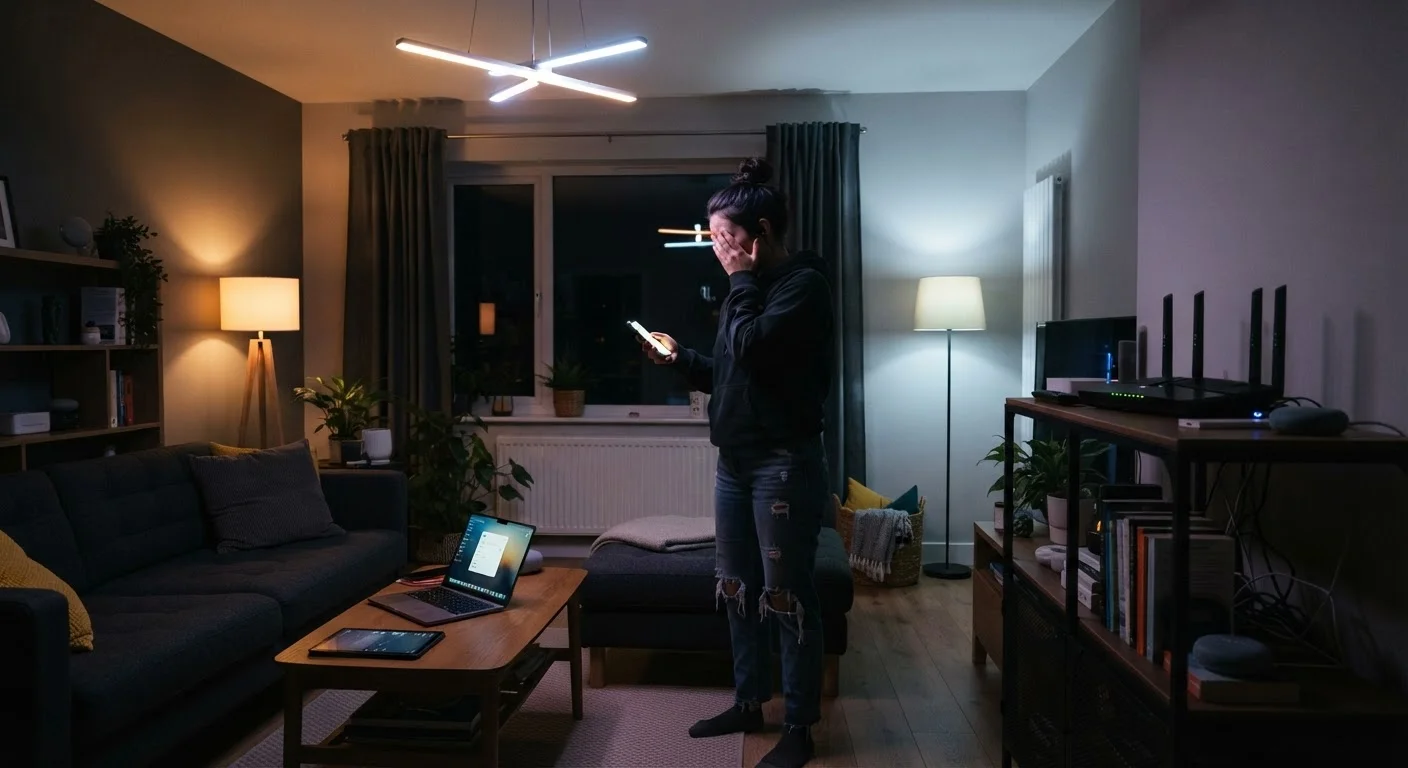
Photo: TheSearchHound.com | One Stop Answer To All Your Questions editorial
Key Takeaways
- Most smart light disconnections trace back to Wi-Fi signal strength, network congestion, or protocol mismatches.
- Placing your router too far from smart bulbs is the single most preventable cause of dropped connections.
- Overloaded routers with too many connected devices struggle to maintain stable links with low-priority smart home gear.
- Mixing incompatible smart home protocols-such as Zigbee and Z-Wave-can create silent communication failures.
- Firmware updates and proper network segmentation resolve a large share of persistent disconnection issues.
The Real Reason Smart Lights Lose Their Connection
Smart light bulbs promise effortless control, but few frustrations rival tapping an app and watching nothing happen. Before blaming the bulb, it helps to understand what's actually happening behind the scenes. Smart lights rely on a consistent, low-latency radio link-typically Wi-Fi, Zigbee, or Z-Wave-to receive commands. When that link breaks down, the bulb drops off your network entirely. Understanding how smart home devices communicate is the foundation for diagnosing why yours keep going silent.
The causes are almost always environmental or configurational-not a defect in the bulb itself. That's good news, because it means most disconnection problems are fixable without buying new hardware.
Placing the router too far from smart bulbs, creating a weak or intermittent signal.
Connecting too many devices to a single router, exceeding its stable connection limit.
Using a merged dual-band SSID that causes 2.4 GHz-only smart bulbs to attempt a 5 GHz connection and fail.
Mixing incompatible smart home protocols without a compatible hub to bridge them.
Ignoring firmware updates on the router and smart bulbs, leaving known connection bugs unpatched.
Relying on a single Wi-Fi hub in a multi-story or large home, creating signal gaps that intermittently drop bulbs.
Network and Router Issues That Silently Disrupt Smart Bulbs
Your home router is the backbone of every connected device in your house, and it has limits. Most consumer routers cap active device connections-some as low as 32 simultaneous clients. Smart bulbs, thermostats, cameras, phones, laptops, and streaming sticks all compete for spots on that list. When the roster fills up, newer or lower-priority devices like smart bulbs get shuffled off and may not automatically reconnect. The overlooked factors that drag down home Wi-Fi often compound this problem.
2.4 GHz
Band used by most smart home devices
The majority of smart bulbs and IoT gadgets use 2.4 GHz Wi-Fi exclusively due to its superior wall-penetrating range compared to 5 GHz.
~15-25%
Smart home users reporting frequent disconnections
Consumer technology surveys consistently find that connectivity dropouts are among the top complaints cited by smart home device owners.
One underappreciated factor is the 2.4 GHz versus 5 GHz band split. Most smart bulbs exclusively use 2.4 GHz because its longer range penetrates walls more easily. If your router broadcasts a single merged network name (SSID) that automatically assigns devices to either band, bulbs may attempt to connect to 5 GHz and fail repeatedly. Separating the two bands and directing smart devices to 2.4 GHz is a straightforward router setting that solves this class of problem entirely.
It's also worth reviewing common Wi-Fi misconceptions before making changes-some widely repeated advice about boosters and placement doesn't hold up in practice.
Keeping Your Smart Lighting Setup Stable Long-Term
Stability isn't just about fixing today's dropout-it's about building a network architecture that accommodates growth. As you add more devices, the same issues will resurface unless the underlying setup can scale. A dedicated IoT (Internet of Things) network segment, separate from your primary Wi-Fi, prevents smart bulbs from competing with bandwidth-hungry devices like video streaming. Many modern routers support guest networks that serve this purpose effectively.
Don't Skip Router Admin Access
Keeping firmware current on both your router and smart bulbs closes known connection bugs that manufacturers patch regularly. Most smart home apps offer automatic update settings-enabling them removes one recurring variable. For households with larger floor plans, a mesh Wi-Fi system provides consistent signal coverage without dead zones, which is where many disconnection complaints originate.
Finally, if you're planning to expand beyond lighting into sensors, locks, or cameras, understanding how to audit your smart home security setup ensures that a more connected home doesn't become a less secure one. The same network hygiene that prevents disconnections also reduces your exposure to unauthorized access.
The content on this site is provided for informational purposes only and should not be considered a substitute for professional advice. While we strive to provide accurate and up-to-date information, we make no guarantees regarding its completeness or accuracy. Always consult a qualified professional for advice specific to your circumstances before making any decisions.